 Detent Point
Every image on this page is a real screenshot of DetentShell. No mockups, no composites. The captures were taken on 2026-08-05 against the build submitted to the Microsoft Store — the same pool the Store listing’s own screenshots come from.
Every capture shows the ISE-style menu bar (File, Edit, View, Tools, Debug, Help) over a single icon toolbar in the classic ISE order: New, Open, Save; Cut, Copy, Paste; Format; Undo, Redo; Run, Run Selection, Stop, and Continue; comment and indent toggles; outlining and settings. To their right sits the per-tab engine picker (Run in: Auto) and a read-only engine badge that names the engine the next run will use, colored by the script’s compatibility check. Below the toolbar is the Functions navigator strip, then the two-level layout: session tabs (each PowerShell 7 or Windows PowerShell 5.1 session is a tab) with script tabs inside, editor above and console below.
DetentShell ships eight built-in themes: Light, Dark, Sage, Terminal Green, Classic Console, Amber Glow, High Contrast, and Sepia. Each pins its own editor, console, and syntax colors, and an automated contrast check runs against every color pair. Sage is the out-of-box default. The four dark-theme shots below share one view — a live Windows PowerShell 5.1 session tab beside PowerShell 7, a script in the editor, and the Settings panel open with the theme selected — the same content, so the colors are the only thing changing.
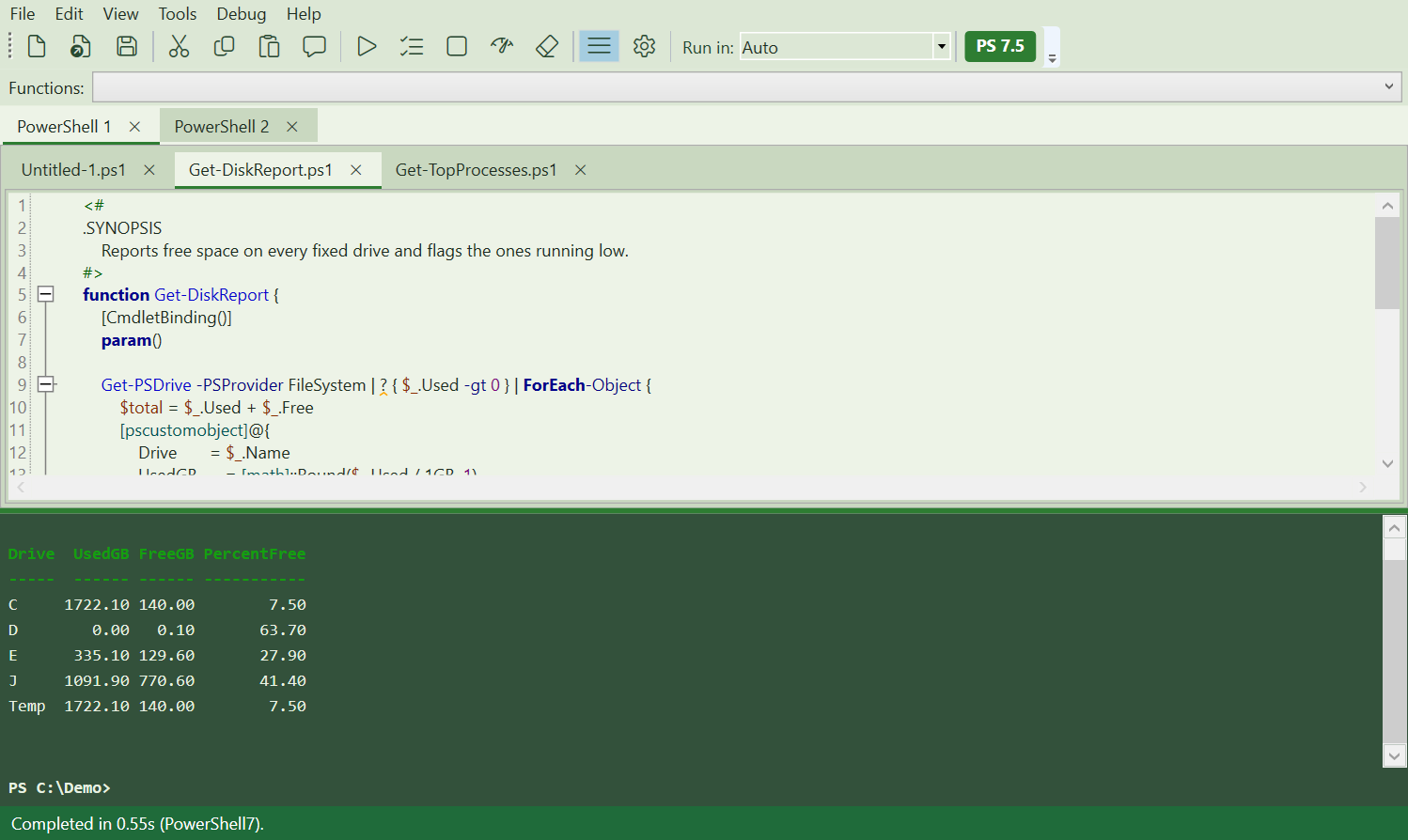
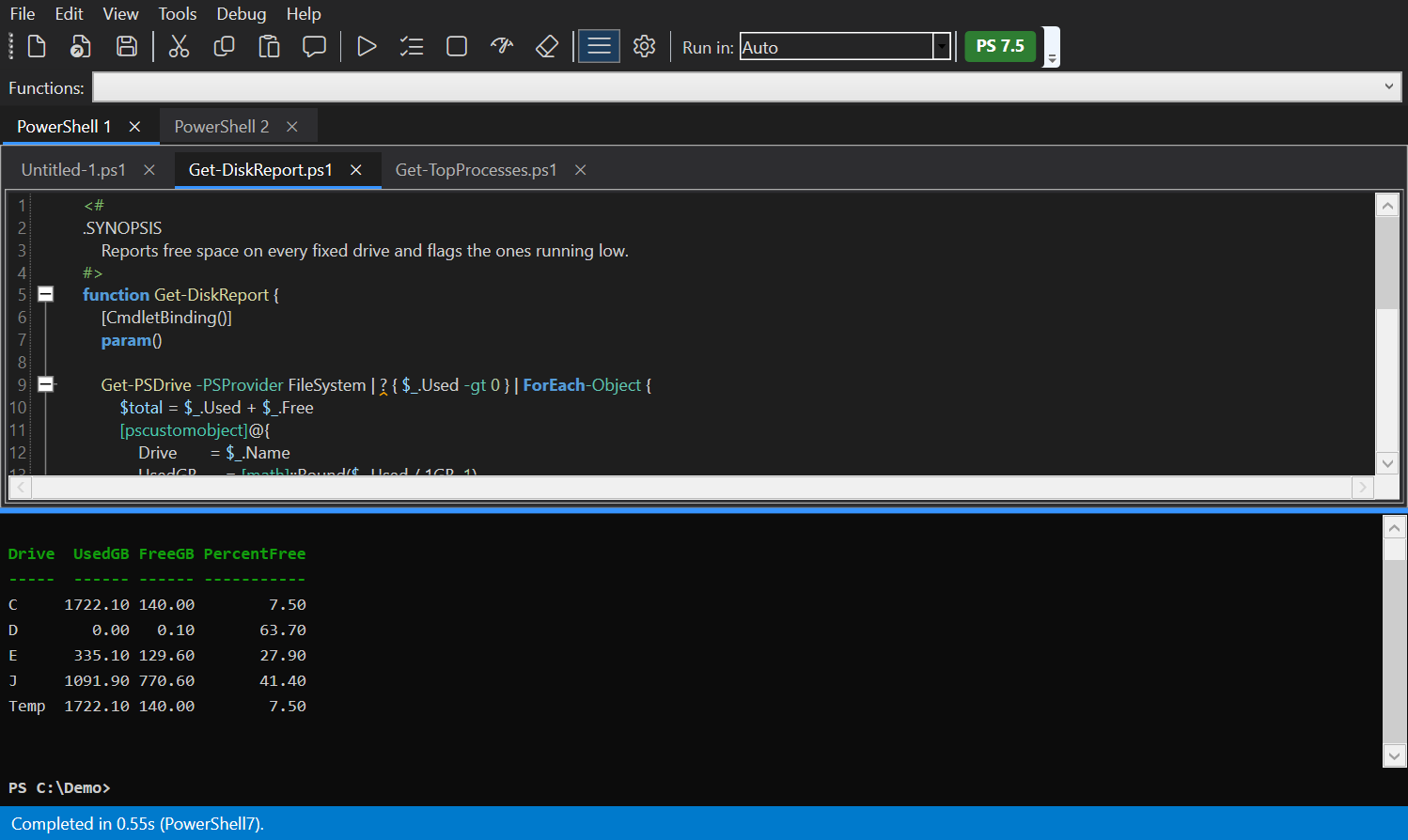
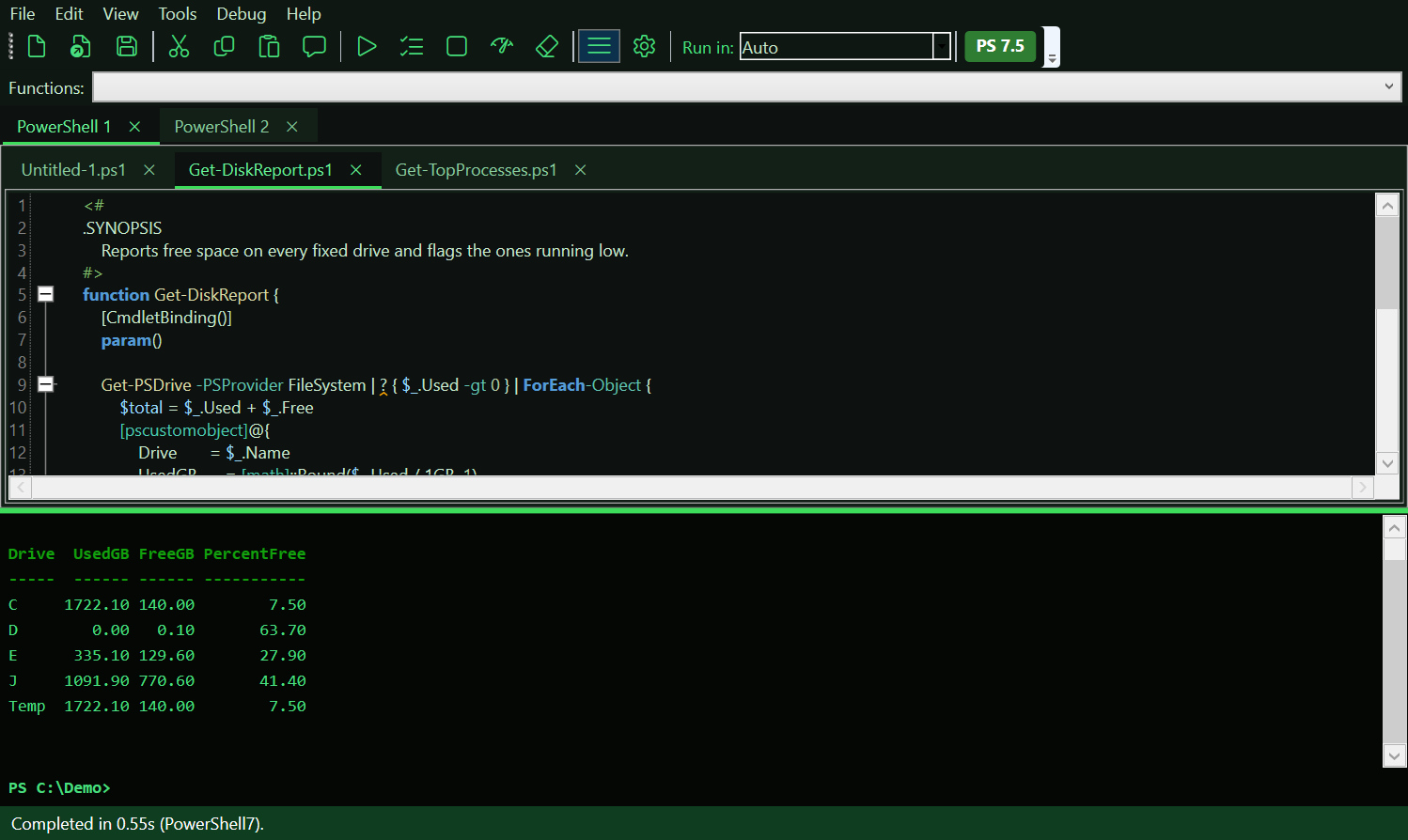
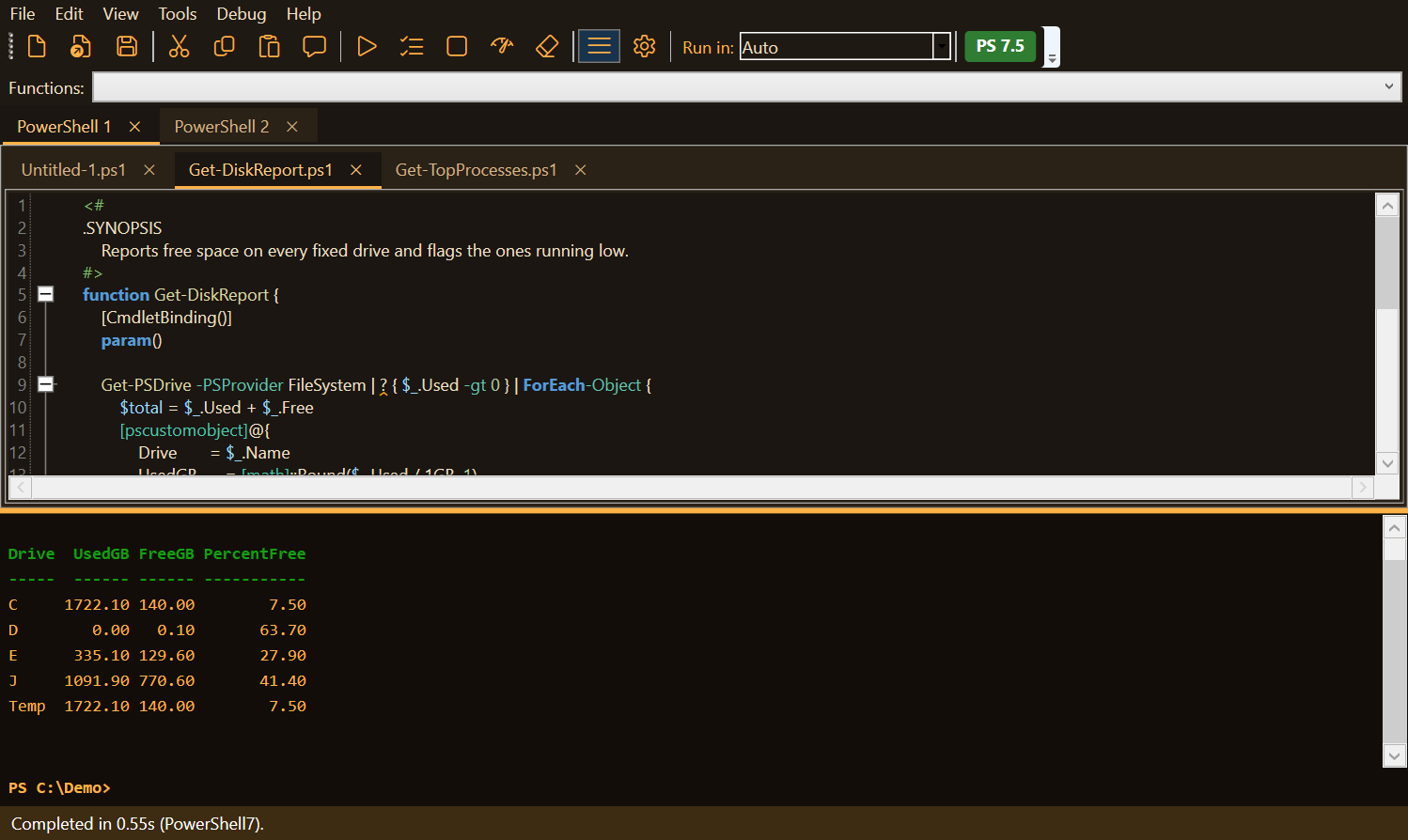
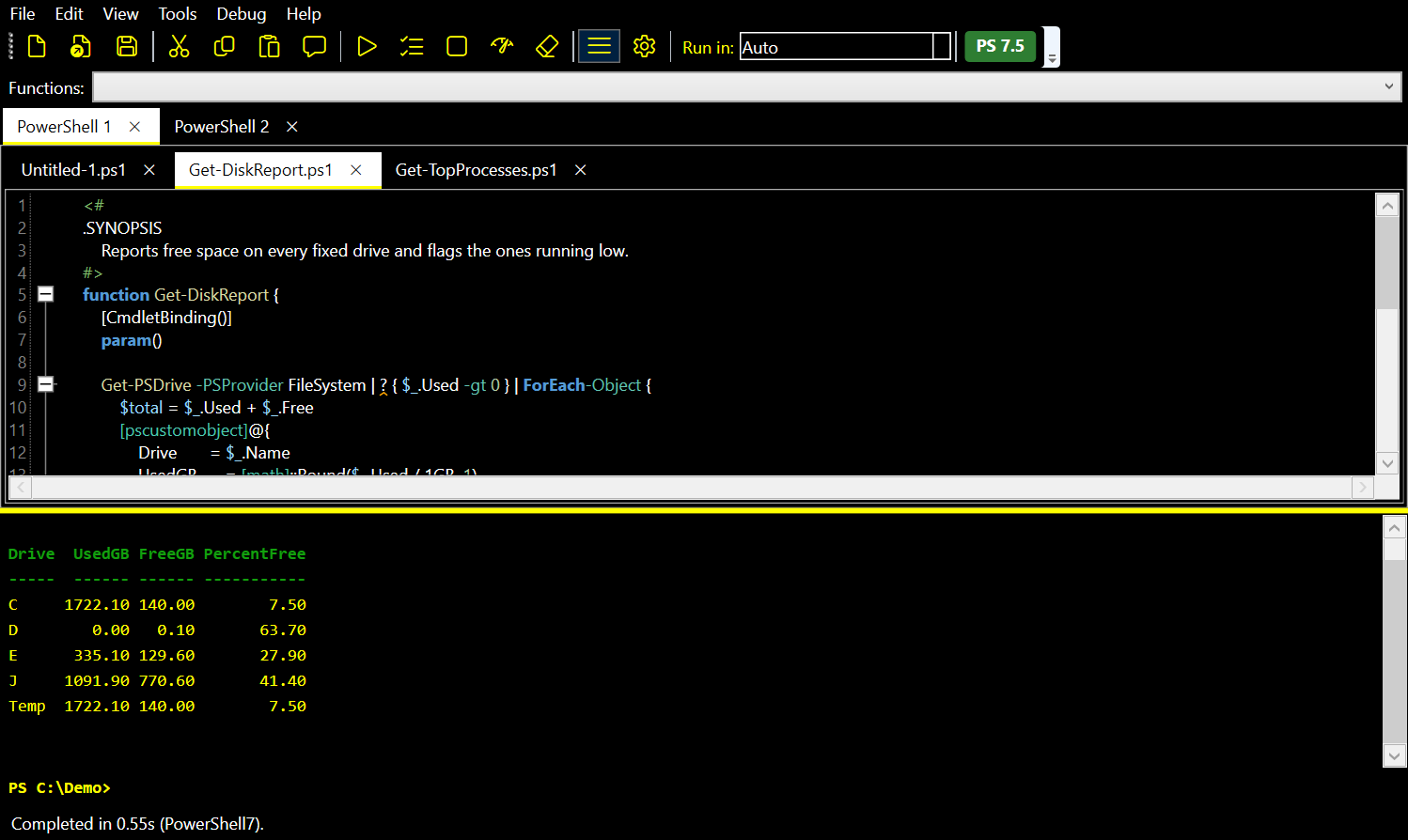
Light, Classic Console, and Sepia are being recaptured against the current build and land here when the shots are ready — real screenshots only, so those three wait rather than showing an older toolbar.
Click any screenshot to view it full screen, right on this page, with the caption still visible. Arrow through the rest from there.
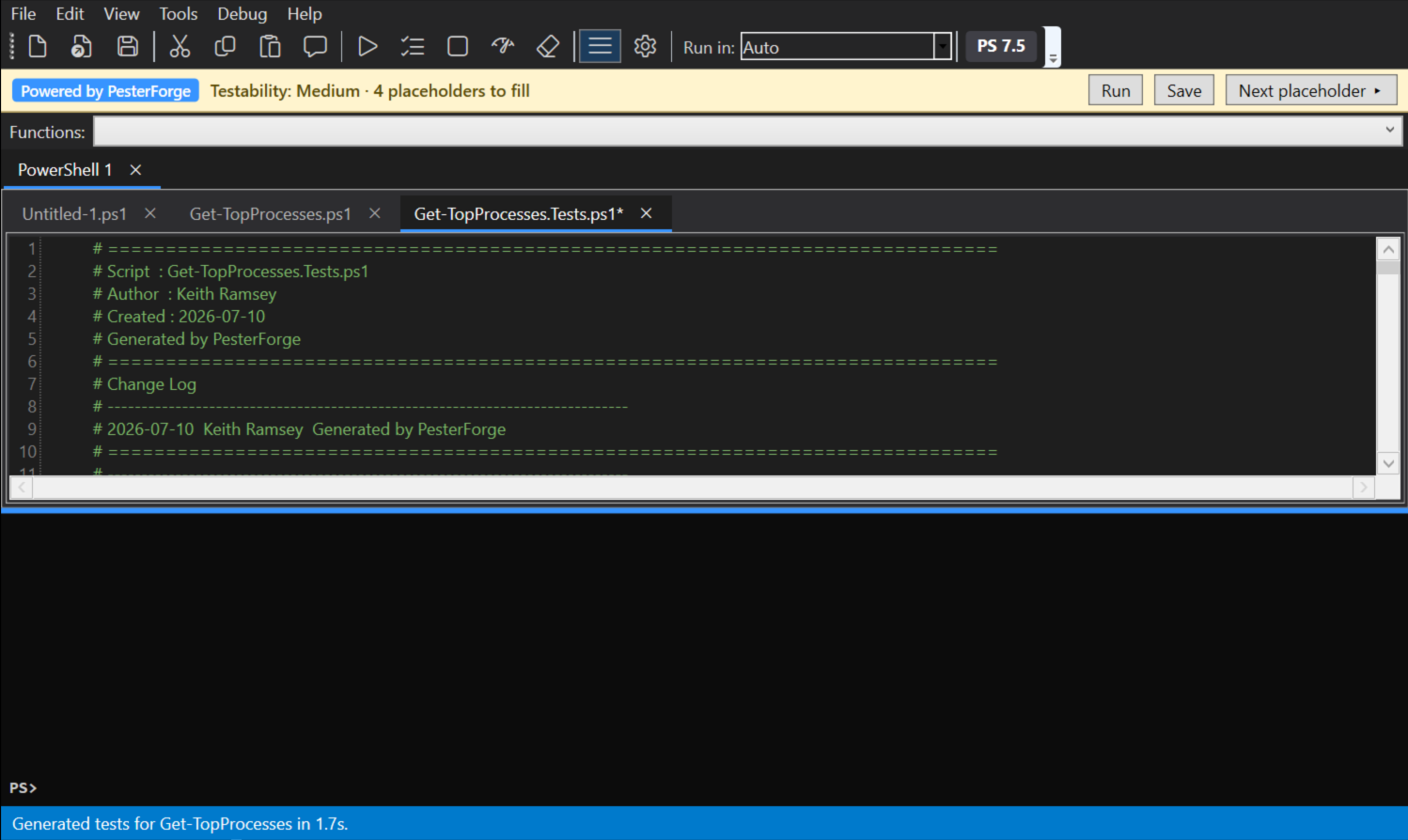
Put the caret in a function and choose Tools → Generate Pester Tests. DetentShell scaffolds a Pester test for that function and opens it in a new tab. The banner across the top shows a testability read and a count of the placeholders you still need to fill in, so you can see how much of the file is scaffold before you trust it.
DetentShell is still in the launch build, so this gallery grows as features settle. Close-ups of the debugger stopped at a breakpoint, Quick Fix previews, and the F1 help pane will land here as each one clears the same bar: a real screenshot of the real app.
PS> Start-Process "https://apps.microsoft.com/detail/9pdxw5ft80g0"
# Opens the Microsoft Store listing
In the Microsoft Store now. DetentShell is $49.99 in the Microsoft Store, with a free trial. Volume licensing for teams is handled separately.